
Background
Did you know that you can use drop-down menus in the new WMS without submitting a request? You can!
There are two styles: a simple drop-down menu and a larger menu with subsections (also called a "mega menu"). Both options are easy to activate from the "structure" menu.
What's changing
We've updated the design and functionality of our drop-down menu feature to:
- Open menus on click, not hover. This improves usability for screen readers and site users with reduced mobility.
- Display a section description within the dropdown (optional) to help users understand the menu options better before making a selection.
- Refine the design to make subsection headings easier to distinguish from regular page links and lighten the appearance of the menus.

Enlarge image of example drop-down menu
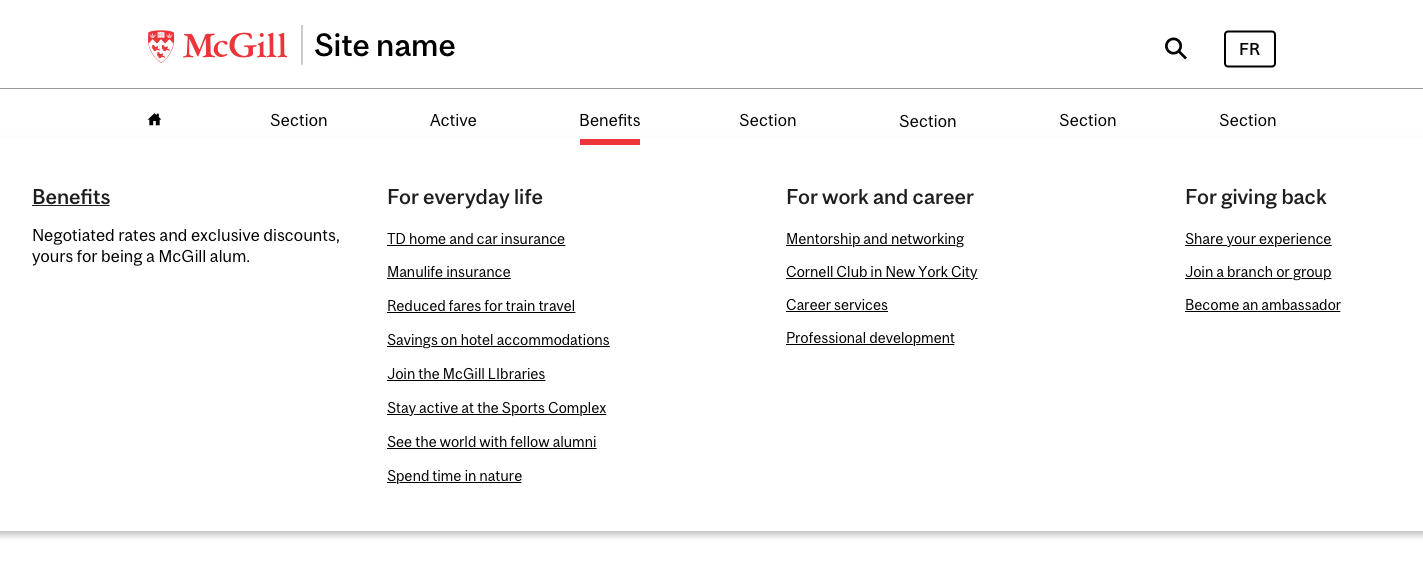
Enlarge image of example mega menu
How to benefit from the change
If you use a drop-down menu now, consider adding descriptions for main menu items to add emphasis and context for users (like the "Benefits" name and description in the examples above).
You can do this using the "description" field that appears on the right side when you click a menu item to edit it:
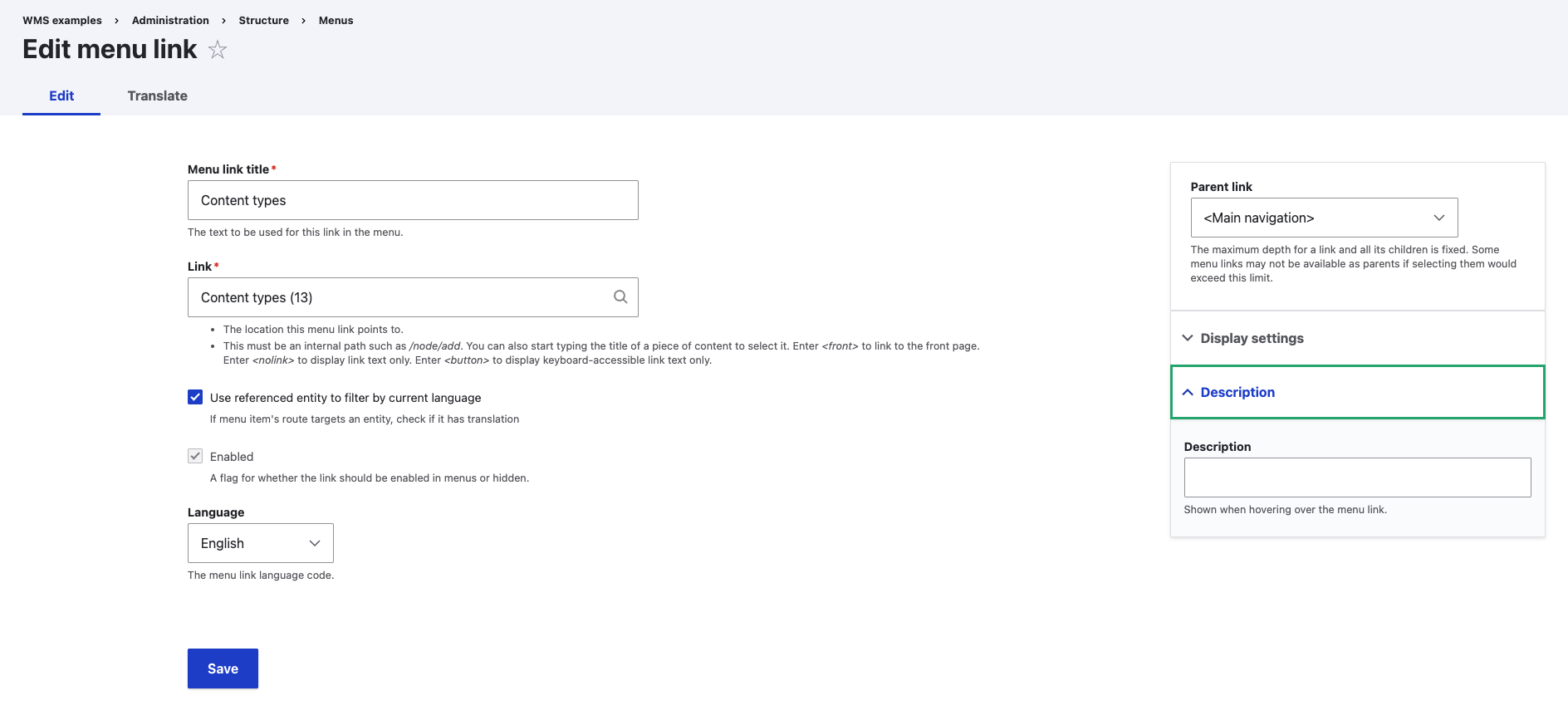
Enlarge image of Edit menu link screen
Otherwise, you don't need to do anything special to take advantage of these updates. Your menus will still look and perform better with their new design and accessibility features.
Next steps
If you aren't using drop-down menus yet, check out our complete guide to how to use drop-down menus to learn more!
Need more help?
Not sure how to use this feature, or need help making it work? Try our drop-in labs to get timely, hands-on help. If you're considering this feature as part of a bigger project, request consultation support.
This update is intended to empower site managers and improve usability. If you're a site manager using this feature, e-mail us to let us know what you think!


