myProgress Degree Audit Tool for UG Students
myProgress is a web-based tool that allows students and advisors to track and monitor progress towards their undergraduate degree. All students admitted to a McGill undergraduate program will have access to myProgress, though it is still under development and is currently intended only for students in certain Faculties.
- Undergraduate studies: Agricultural & Environmental Sciences, Education, Engineering, Environment, Management, Music, and Nursing
- Graduate studies: All Faculties
Undergraduate Students
Logging in
Click the myProgress button below to log in using your McGill email address and password.

Note: Currently intended only for Agricultural & Environmental Sciences, Education, Engineering, Environment, Management, Music, and Nursing students. Students in any Faculty not listed above will see incorrect, incomplete, or misleading information.
How to use myProgress
This short video will help you make the most of your myProgress degree audit tool:
For best results, please use the most recent version of Mozilla Firefox or Google Chrome web browsers to access myProgress.
Graduate Students
Please access myProgress through the Graduate & Postdoctoral Studies website.
Undergraduate Advisors, Coordinators, & Directors
Logging in: access myProgress for student advising, graduation approval, generating reports, etc. through:
- Minerva > SR Admin Menu > myProgress (Graduate Milestones Management & Undergraduate Advising); or
- Minerva > Advisor Menu > myProgress (Graduate Milestones Management & Undergraduate Advising).
The "myProgress Hub" will then display. Access the myProgress tool by clicking the "Degree Works Advising (Undergrad)" tile and logging in using your McGill email and password.
Using myProgress
Please refer to the following resources to get the most out of myProgress and simplify your advising interactions:

FAQ
The following are responses to the most common questions about using myProgress. If you’re still unclear about something appearing on your myProgress student worksheet, please contact your departmental advisor.
What is myProgress?
myProgress is a degree audit system that gives you a personalized report of your current program requirements. It provides an accurate overview and visual cues to show you exactly how far you've come in your degree and what you still need to do before you can graduate.
Verifying your degree requirements (a.k.a. student worksheet) in myProgress will help you stay on track towards graduation and make informed decisions about your future course registrations. Your worksheet will also be an important advising tool. Your advisor will use your myProgress student worksheet to verify your degree progress and leave notes/adjust your worksheet when appropriate.
Using the "What-if" tab, you can also see what your academic requirements would look like if you changed your program or added a program (see also "How do I use the What-if tab?").
myProgress is currently only intended for undergraduate students in the Faculties/Schools of Agricultural & Environmental Sciences, Education, Engineering, Environment, Management, Music, and Nursing, and graduate students in all Faculties.
How do I log into myProgress?
If you are:
- an undergraduate student: click on the myProgress logo in the "Undergraduate Students" tab above and use your McGill email address and password to log in.
- a graduate student: please refer to the Graduate & Postdoctoral Studies myProgress web page for instructions and access link.
- an advisor or staff: please log in to myProgress using the link in the Minerva SR Admin Menu.
How do I use myProgress?
After logging into myProgress, you will see a page containing your student information followed by all the requirements of your McGill degree; this page is called your myProgress student worksheet. It displays all courses required for the programs you're in, and the status of those courses ( Complete,
  In-progress, or
  Not complete). You can refer to the legend at the bottom of the worksheet to help make sense of other symbols used in the worksheet.
You may also see sections entitled "Exceptions" or "Notes" near the bottom of your worksheet. These are usually inserted by your advisor following an advising session. Exceptions are added to your worksheet when you've been given permission to replace one course requirement with another. Notes are added by your advisor to keep track of interactions and discussions you've had together.
Using the "What-if" tab, you can also see what your academic requirements would look like if you changed your program or added another program (see also "How do I use the What-if tab?").
How do I use the What-if tab? (Undergraduates only)
The "What-if" tab allows you to see what your program requirements would look like if you changed your program or added a new program. It allows you to visualize any number of hypothetical situations to see how the courses and activities you've already completed would fit into a different set of program requirements.
When using the "What-if" tab, it's important to insert all required fields indicated by an asterisk ("*").
Can I save or print my student worksheet or "What-if" hypothetical?
You can print your student worksheet, or a “What-if” hypothetical worksheet, by using your web browser’s “Print” functionality, or by clicking the print icon at the top-right corner of your myProgress student worksheet:
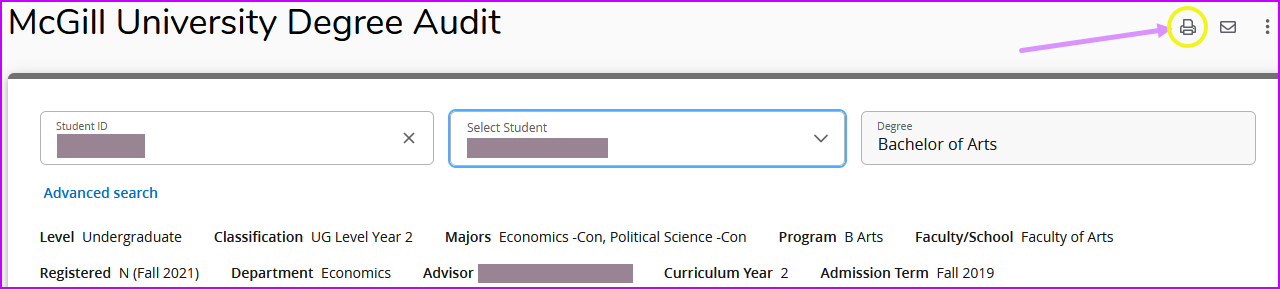
By following your web browser’s “Print” prompts, you can print a physical copy or “Save as PDF” for storage on your device’s local storage.
My completed courses are appearing as incomplete/aren't appearing where I expect them to be. Why is that?
Although the myProgress tool uses an integrated logic engine to decide how your completed courses should be applied to your degree, sometimes the courses may appear in unexpected areas. If you’re expecting a requirement to be fulfilled, but it’s not, there could be a number of possible reasons. Here are a few examples of possible reasons:
- One or more courses haven’t received a grade yet;
- The requirement is being fulfilled by another course, so the course in question is being used to fulfill a different requirement (such as fulfilling elective credit requirements, etc.);
- You have gotten permission from an advisor to fulfill the requirement using another course, but the exception hasn't been created in myProgress yet. Once the exception is approved, you will see the change in your student worksheet under the affected requirement. You may also view any changes/exceptions made to your student worksheet in the “exceptions” area near the bottom of the worksheet.
What should I do if I'm unable to log into myProgress?
All students admitted to a McGill undergraduate program will have access to myProgress and should be able to log in using your McGill email and password. However, myProgress is still under development and is being released for McGill students one Faculty at a time. Currently, myProgress is intended only for students in:
- Agricultural & Environmental Sciences, incl. School of Human Nutrition
- Faculty of Education
- Faculty of Engineering, incl. Schools of Architecture and Urban Planning
- Bieler School of Environment
- Desautels Faculty of Management, incl. School of Retail Management
- Schulich School of Music
- Ingram School of Nursing
- Graduate studies: students in all Faculties and Schools
If you’re not in one of the groups listed above, please check back here in May 2027 to see if the tool has been released for your faculty.
If you are in one of the groups listed above and are unable to log in using your McGill username and password, please refer to the "I can't log in to my McGill account" IT Knowledge Base article.
My myProgress student worksheet is incorrect/incomplete. What should I do?
myProgress is still under development and is being released for McGill students one Faculty at a time. Currently, myProgress is available to:
- Agricultural & Environmental Sciences, incl. School of Human Nutrition
- Faculty of Education
- Faculty of Engineering, incl. Schools of Architecture and Urban Planning
- Bieler School of Environment
- Desautels Faculty of Management, incl. School of Retail Management
- Schulich School of Music
- Ingram School of Nursing
- Graduate studies: students in all Faculties and Schools
If you’re not in one of the groups listed above, you will be able to log into myProgress but the information contained in your student worksheet will be unvetted and most likely incorrect. The myProgress team is working to make the tool available to all McGill students by the end of 2027.
If you are in one of the groups listed above, please contact your departmental advisor to let them know your myProgress student worksheet is incorrect.
Who can see my myProgress worksheet?
Your myProgress student worksheet is confidential and can only be viewed by you, your academic advisor, and other McGill academic/administrative staff whose roles and responsibilities require access to confidential student information.
Since your myProgress student worksheet is an important advising tool and roadmap for successful completion of your studies, your advisor may view it and even add notes to your worksheet from time to time. When you apply to graduate, your advisor will likely verify your degree status in myProgress.